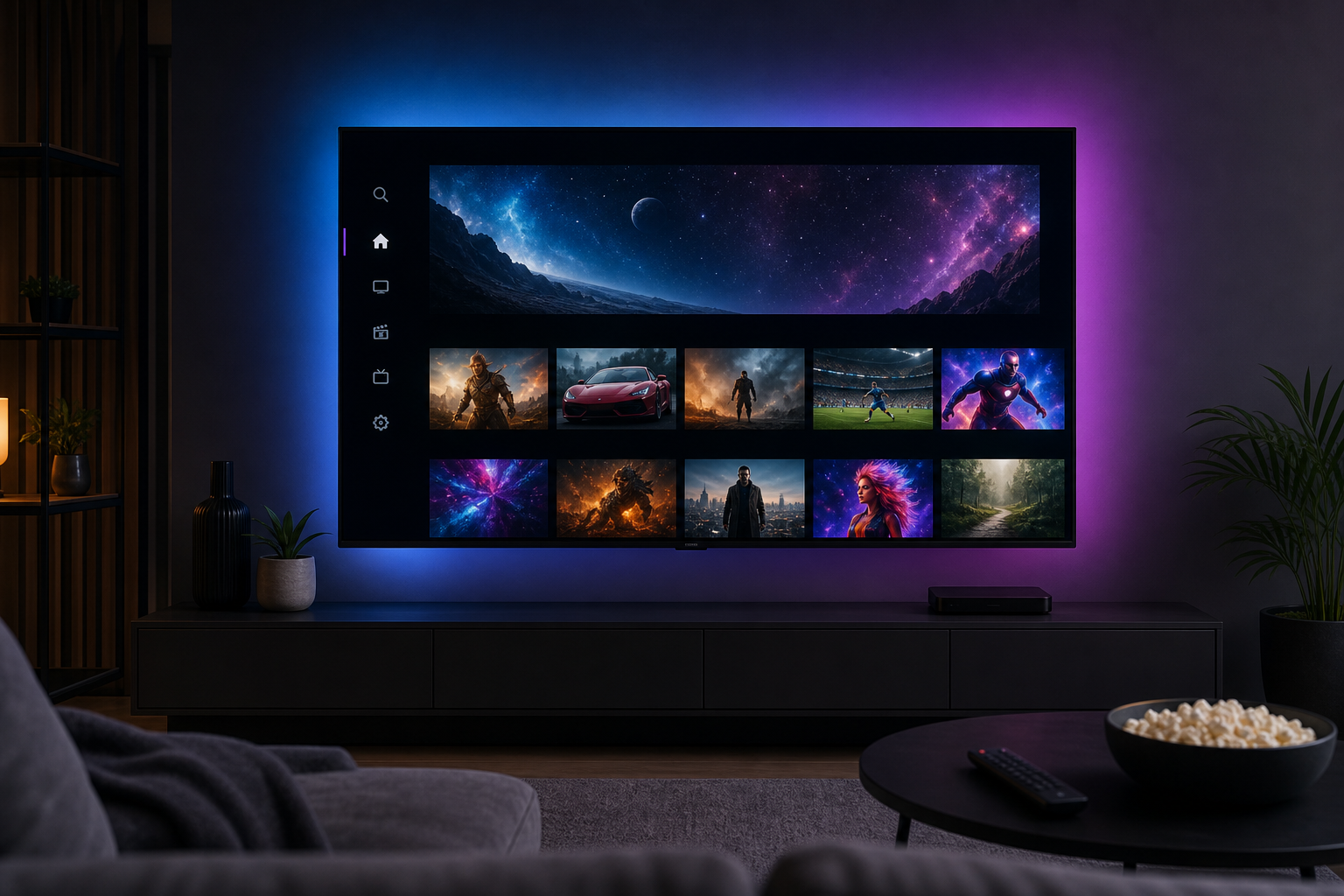
Setting up IPTV on a smart TV gives you the best of both worlds — a big-screen experience with the full channel flexibility of an IPTV subscription. This guide walks you through setup on every major smart TV platform in 2026.
Time to complete: 5–10 minutes. No hardware purchases required.
What You Need Before Starting
- An active IPTV subscription with M3U URL or Xtream Codes credentials (server URL, username, password)
- Your smart TV connected to the internet (Wi-Fi or Ethernet)
- About 5 minutes
With Xstreamity, credentials are delivered to your WhatsApp immediately after subscribing. A free 24-hour trial is available — no card required.
Setup Guide by Smart TV Platform
Samsung Smart TV (Tizen OS)
Samsung’s Tizen OS doesn’t support sideloading APKs easily, so the recommended approach is to use the Smart IPTV app or a screen mirroring method.
Option 1 — Smart IPTV app (recommended):
- On your Samsung TV, go to Apps → search for “Smart IPTV” and install it
- Open Smart IPTV — note your TV’s MAC address shown on screen
- Go to siptv.eu on your phone or computer, enter the MAC address and paste your M3U URL
- Press “Send list to TV” and restart the Smart IPTV app
- Your channels will load automatically
Option 2 — Casting from Android: Install an IPTV app on your Android phone (e.g., IPTV Smarters) and cast to your Samsung TV via Chromecast or Screen Share.
LG Smart TV (webOS)
LG’s webOS supports the SS IPTV app and the TiviMate Web interface through the built-in browser.
Recommended: SS IPTV
- Open LG Content Store on your TV
- Search for and install “SS IPTV”
- Launch SS IPTV → go to Settings → Add Playlist
- Enter your M3U URL or Xtream Codes credentials
- Confirm and let the app load your channels
Alternatively, use the LG TV Plus app on your phone to cast IPTV content.
Sony TV (Google TV / Android TV)
Sony TVs running Google TV or Android TV have direct access to the Google Play Store — this is the simplest smart TV platform for IPTV.
- Open the Google Play Store on your Sony TV
- Search for and install IPTV Smarters Pro or TiviMate
- Open the app → Add New User (Smarters) or Add Playlist (TiviMate)
- Enter your Xtream Codes URL, username, and password
- Channels load automatically with full EPG
Sony Google TV is the most straightforward smart TV platform for IPTV — the Play Store gives you access to all major IPTV apps.
Hisense TV (VIDAA OS)
Hisense VIDAA OS has limited app availability. Recommended approaches:
Option 1 — VEWD app (VIDAA Store): Some Hisense models have the VEWD browser which can run web-based IPTV players. Check your app store for “IPTV” options.
Option 2 — Connect a streaming stick: Plug a Fire TV Stick, Chromecast with Google TV, or Roku into your Hisense HDMI port. This instantly adds full IPTV app support.
Option 3 — Screen mirroring: Mirror from an Android device using Hisense’s built-in screen share feature.
Android TV Boxes (Formuler, BuzzTV, Nvidia Shield, etc.)
Dedicated Android TV boxes give you the best IPTV experience on a big screen.
- Open Google Play Store on your Android TV box
- Install TiviMate IPTV Player (best for TV-style navigation) or IPTV Smarters Pro
- Launch → Add Playlist → Xtream Codes
- Enter server URL, username, password
- Your full channel list and EPG load in seconds
TiviMate’s interface looks and feels like a proper TV guide — it’s the best IPTV experience available on Android TV boxes.
Optimising Your IPTV Experience on Smart TV
Use Ethernet for 4K streams
Wi-Fi works fine for HD, but a wired Ethernet connection is strongly recommended for 4K IPTV streams to prevent buffering.
Recommended internet speeds
- HD (1080p): 10 Mbps minimum
- Full HD / 4K: 25–50 Mbps
- 4K with multiple devices: 50+ Mbps
Not sure about your speed? Test it at Speedtest.net before selecting your stream quality.
Set your video output to match your TV
Most IPTV apps let you set a preferred stream quality. Match it to your TV’s resolution (HD, Full HD, or 4K) in the app settings.
Enable EPG for the channel guide
The Electronic Programme Guide (EPG) gives you a TV-style grid of what’s on now and next. Enable it in your IPTV app settings — Xstreamity includes full EPG data with every subscription.
Frequently Asked Questions
Can I use IPTV on a smart TV without a streaming stick? Yes — Samsung (Smart IPTV), LG (SS IPTV), and Sony/Android TV (Play Store apps) all support IPTV natively. For Hisense, a streaming stick gives the best experience.
Does IPTV work on older smart TVs? Most smart TVs from 2015 onwards support at least one of the methods above. For older TVs without smart features, plug in a Fire TV Stick or Chromecast.
What’s the best IPTV app for smart TV? TiviMate on Android TV is generally considered the best smart TV IPTV experience. For Samsung and LG, Smart IPTV and SS IPTV are the top choices.
How do I add more channels to my smart TV IPTV? Your channels come from your IPTV subscription. Xstreamity includes 50,000+ channels — you can’t add more channels without upgrading your provider.
Why does IPTV buffer on my smart TV? The most common causes are a slow internet connection, Wi-Fi interference, or server issues. Try switching to Ethernet, reducing the stream quality, or contacting your provider if the issue persists.
Try Xstreamity on Your Smart TV — Free for 24 Hours
Start your free IPTV trial on WhatsApp →
We’ll send you credentials instantly. Compatible with Samsung, LG, Sony, Android TV, and all major IPTV apps. View subscription plans from $10 →
Also streaming on other devices? See our guides: